Accounts FB
Lesson navigation
Lesson Overview
Facebook Accounts: Everything You Need to Know
Facebook accounts are the foundation of your work in affiliate marketing. Without properly set up and structured accounts, you can’t launch ads, manage campaigns, or scale effectively. But not all Facebook accounts are the same, and understanding their types, roles, and connections is crucial for running a successful operation. Let’s break it all down.

1. Facebook Account Structure
Before jumping into the types of accounts, let’s first understand the basic structure of a Facebook account and the advertising tools within it.
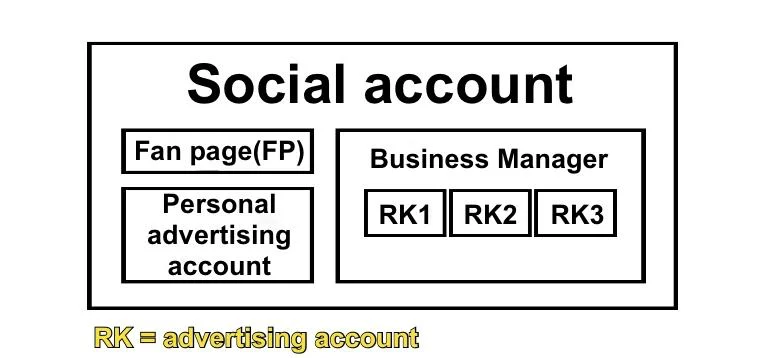
At its core, a social account is just your personal profile — the one where you post pictures, chat with friends, and scroll through your feed.
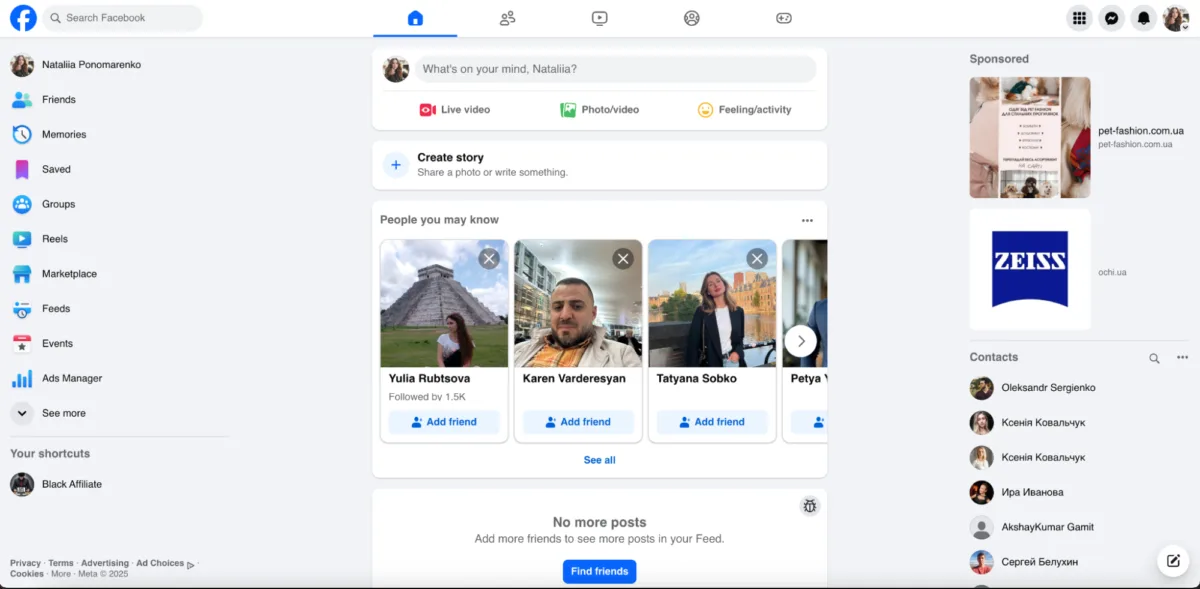
- What is it? This is your main Facebook account—the one where you could post selfies, like posts, or chat with friends. It’s the single profile you mentioned in your account.
- Why do you need it? It’s like the key to all of Facebook’s advertising tools. Without a profile, you can’t access pages, ads, or anything else. Everything starts here.
- Good to know: Your agency account is likely tied to one main profile that fanagency uses to manage everything.
Link: Facebook Help Center - Understanding Your Profile
However, within this profile, you gain access to Facebook’s advertising tools, which include:
1.1 Personal Ad Account
This is the default ad account that comes with every Facebook profile. It’s tied directly to your personal account and is often the first place where new affiliates start running ads. However, personal ad accounts have strict limits and are not suitable for long-term scaling.
The tool is called - Ads Manager
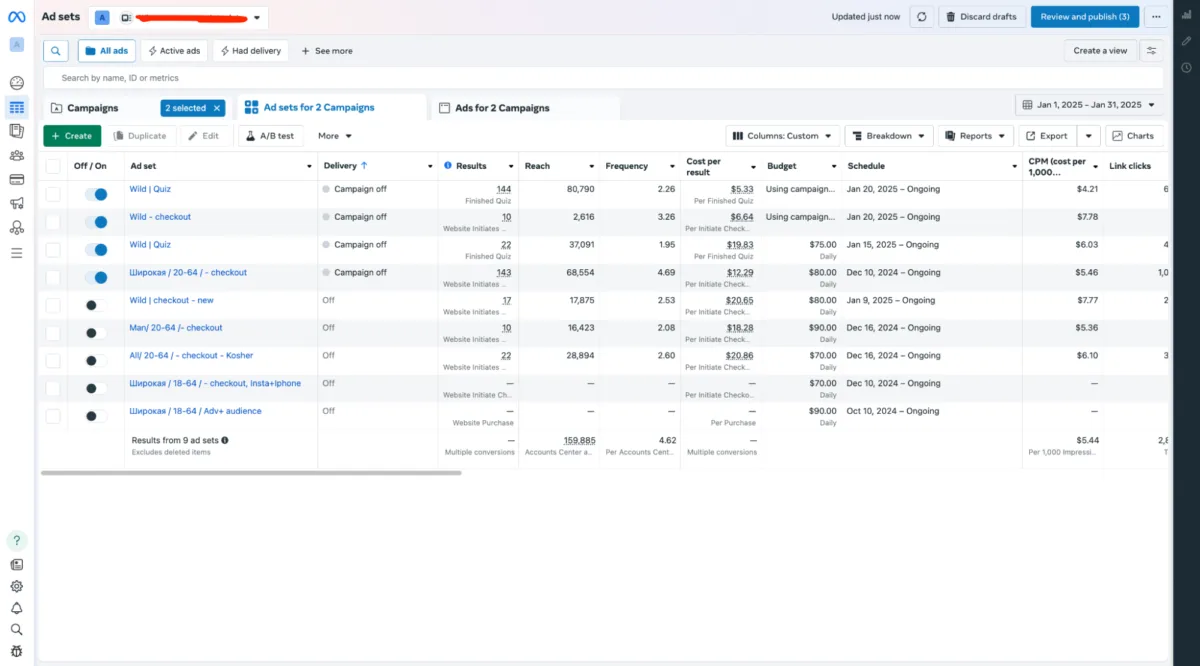
- What is it? This is a basic ad account tied directly to your personal profile. It lets you run ads but has limits (like smaller budgets).
- Why do you need it? It’s a starting point for beginners, but in your agency account, you’re likely using more powerful ad accounts inside Business Managers.
- Why don’t you see it clearly? Your ad accounts are probably nested within the Business Managers, which is why they feel like part of the “portfolios.”
By entering the following URL in the address bar: https://adsmanager.facebook.com/
Upon first login, you may need to accept Facebook’s Terms of Service. Just click Accept to proceed.
Link: Facebook Ads Help - About Ad Accounts
1.2 Business Manager (BM)
A Business Manager (BM) is essentially a company-level account where you can create multiple ad accounts, manage pages, pixels, and add team members. BMs are much more powerful than personal ad accounts because they allow for greater flexibility and the ability to manage multiple assets from one place.
Each BM allows you to create multiple ad accounts (depending on the BM’s trust level). These accounts operate similarly to personal ad accounts but are linked to the BM rather than an individual user.
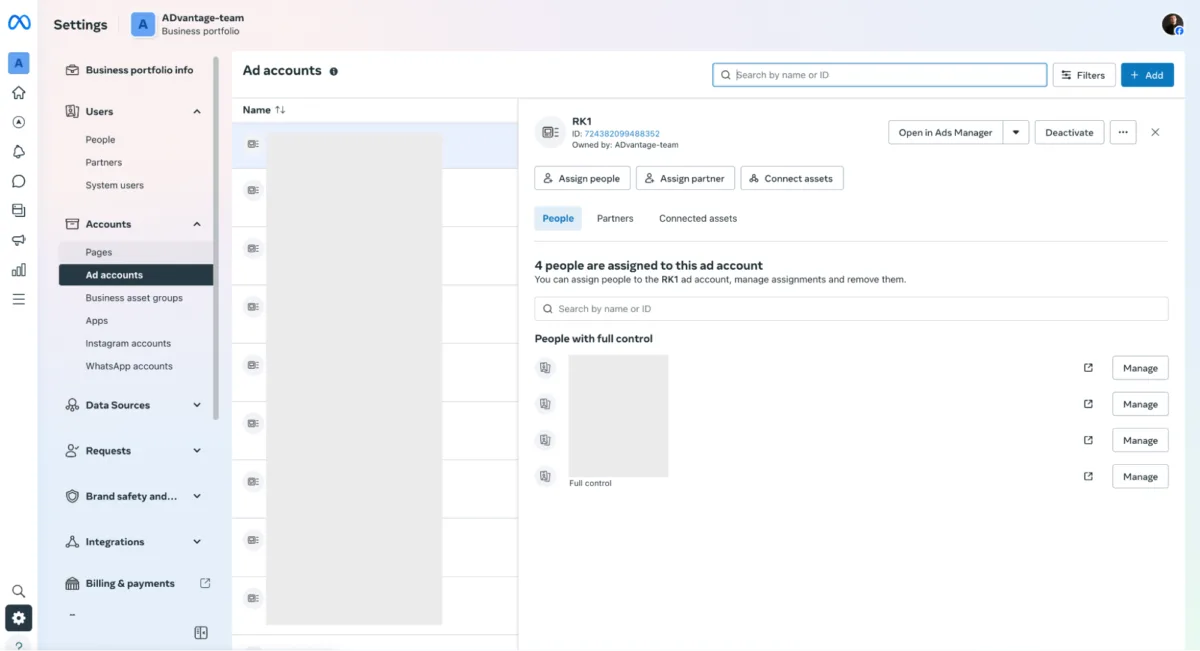
- What is it? This is your “command center” for managing ads. It’s a dashboard where you can control multiple ad accounts, pages, pixels, and team members all in one place.
- Why do you need it? If you’re running lots of ads, Business Manager makes life easier. You can create several ad accounts, link Fan Pages, and manage everything centrally.
Link: Facebook Business Help - About Business Manager
1.3 Business Suite
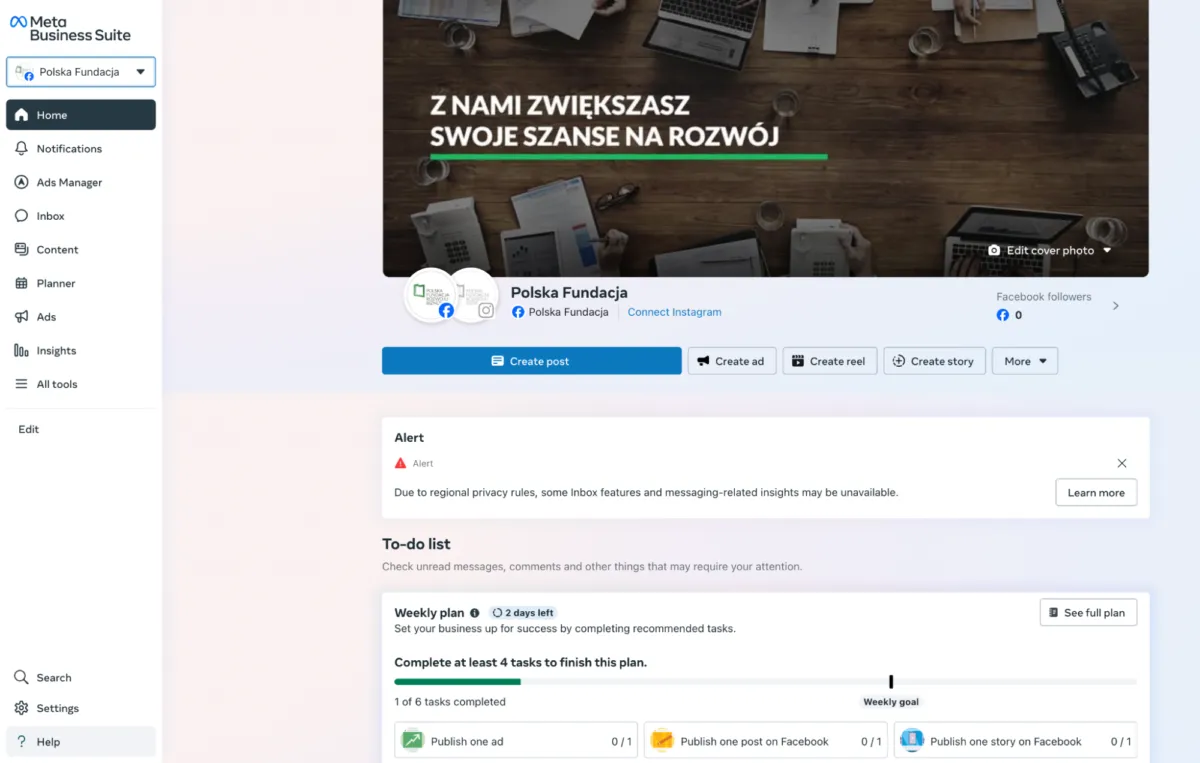
- What is it? Business Suite is a user-friendly interface that combines management of Fan Pages, ads, and messaging. It’s like a simplified dashboard for your pages.
- Why do you need it? You can use it to post content on your Fan Pages, reply to comments, check stats, or even run ads. It’s great for managing content and staying organized.
- Why is it there? Business Suite to make it easier for you to handle your Fan Pages, especially if you’re focusing on content or engagement.
Link: Facebook Business Help - Getting Started with Meta Business Suite
1.4 Fan Page (FP) / Business Page
A Fan Page (FP) is the public-facing page that represents your business on Facebook. Every ad that runs on Facebook must be attached to a Fan Page, as ads cannot be run directly from a personal profile.
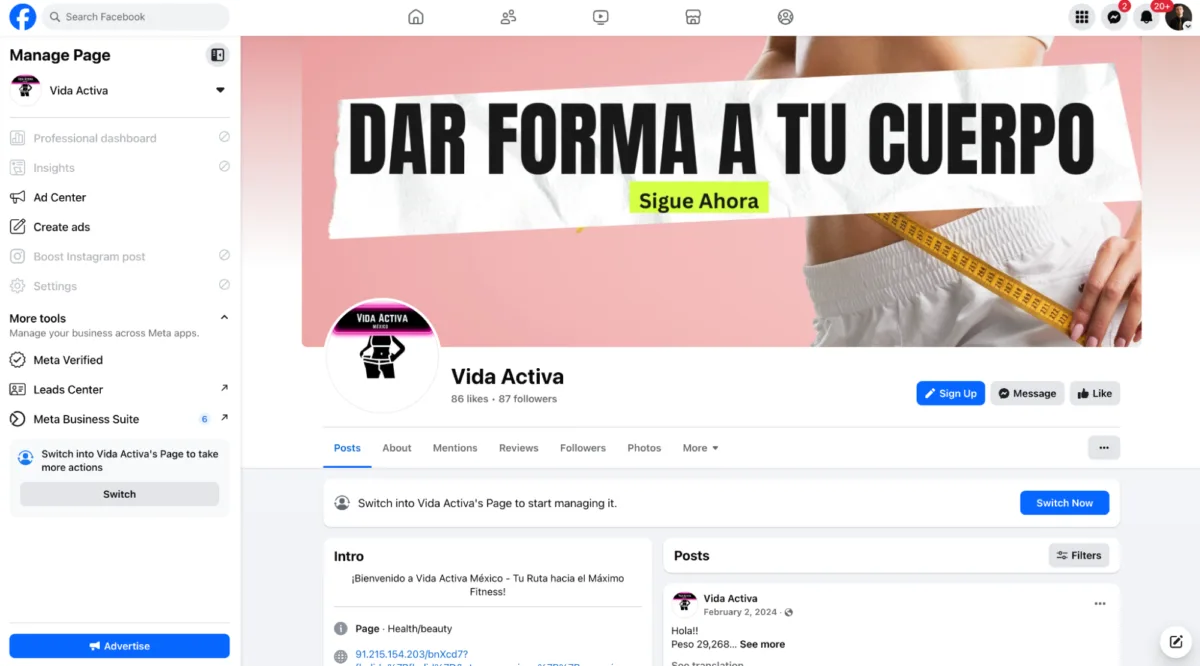
- What is it? These are public pages that represent a business, brand, or theme (like a casino, shop, or blog). You’ve got 4 of them in your account.
- Why do you need it? Every ad you run on Facebook has to be linked to a Fan Page—you can’t run ads directly from your personal profile. For example, if you’re promoting gambling, a Fan Page might look like a casino or entertainment page.
Link: Facebook Help Center - Creating and Managing Pages
1.5 Additional Business Assets
- You mentioned “lots of additional stuff,” which could include:
- Pixels: Tools to track user actions (like clicks or sign-ups).
- Product Catalogs: For advertising products (less likely for gambling).
- Team Access: Permissions for other users to manage pages or ads.
- Saved Audiences: Pre-set targeting options for ads.
Link: Facebook Business Help - Understanding Business Assets
The account structure looks like this:
2. Types of Facebook Accounts in Affiliate Marketing
Since we work in traffic arbitrage, running gray-hat offers means Facebook is constantly banning accounts. To mitigate risk and keep campaigns running, we use different types of accounts.
🌍 Why Account Types Matter
Running Facebook Ads is a powerhouse strategy for driving traffic. Knowing your account options helps you dodge bans and maximize profits. We’ll explore all types, but agency accounts are our star players—stable, scalable, and simpler for beginners. Let’s break it down! 📋
2.1 Agency Accounts – Your Best Bet!
What They Are: Premium accounts managed by agencies, often with fan pages, proxies, and profile access included. You pay a commission based on ad spend. Why You Need Them: Perfect for launching big campaigns right away!
- ✅ Pros: High trust, better ban resistance, easy moderation pass, saves setup time.
- ❌ Cons: Commission fees (tied to ad spend), needs decent budget to start. For Beginners: Top pick! Stable and low-hassle, ideal for scaling up fast.
2.2 Personal Accounts
What They Are: Real user accounts, often old and unused, logged into trusted devices. Why You Need Them: Great for warming up to build trust.
- ✅ Pros: High trust if warmed up right, good for initial ads.
- ❌ Cons: You need to ask for access to the FB accounts of your friends, in which case the advertising account may be blocked. For Beginners: Okay to try, but requires effort to warm up/farming.
2.3 Rental Accounts (Aged)
What They Are: Real user accounts rented out for ads. Why You Need Them: More trusted than autoregs, last longer in campaigns.
- ✅ Pros: Decent trust level, longer survival.
- ❌ Cons: Owner might reclaim or double-rent, adding risk. For Beginners: Proceed with caution - reliability varies.
2.4 Logs (Stolen)
What They Are: Hacked or phished accounts with high trust. Why You Need Them: Quick trust boost for ads.
- ✅ Pros: High initial trust from real usage.
- ❌ Cons: Unethical, risky (owners can reclaim), potential legal issues. For Beginners: Avoid - too risky and unreliable.
2.5 Farmed Accounts
What They Are: Auto-created accounts “farmed” with activity (friends, likes, group joins). Why You Need Them: Mimic real user behavior for better trust.
- ✅ Pros: More ban-resistant than autoregs, customizable.
- ❌ Cons: Costlier ($3–$5 each), quality depends on farming, are not immune to bans. For Beginners: needs testing.
2.6 PZRD Accounts
What They Are: Artificially recovered accounts that were initially blocked and then unblocked through a document. Why You Need Them: Suitable for running ads
- ✅ Pros: Ban recovery, good for ongoing campaigns, testing offers.
- ❌ Cons: Not fully ban-proof,can be blocked again. For Beginners: can be used, sometimes accounts are combined - Farm + PZRD to make it more trustworthy
2.7 Autoreg Accounts
What They Are: Mass-created accounts via automation tools. Why You Need Them: Cheap and abundant for bulk use.
- ✅ Pros: Low cost, easy to acquire in bulk.
- ❌ Cons: Low trust, high ban risk from Facebook. For Beginners: Requires volume and warming - challenging start.
2.8 King Accounts
What They Are: Trust-boosted farmed accounts (6-12 days old) with fan pages and business managers. Why You Need Them: Strong base for linking ad accounts.
- ✅ Pros: High trust, personal photos help avoid bans, great for management.
- ❌ Cons: Setup time, cost varies. For Beginners: Good option with guidance.
3. How Accounts Are Connected & Managed
If you do not work with agency accounts, for the convenience and efficiency of managing your advertising accounts, you need to structure your accounts in a hierarchical system using the King Account, which will combine different tools, and it also helps to reduce the risk of bans.
3.1 King Account Hierarchy
💡 Example Setup:
1️⃣ King Account → Owns the Business Manager (BM) – we use this as our primary trusted base.
2️⃣ Purchase new Facebook accounts with ad accounts, or buy Business Managers with ad accounts → transfer access to the main Business Manager (King). Video introduction or manual
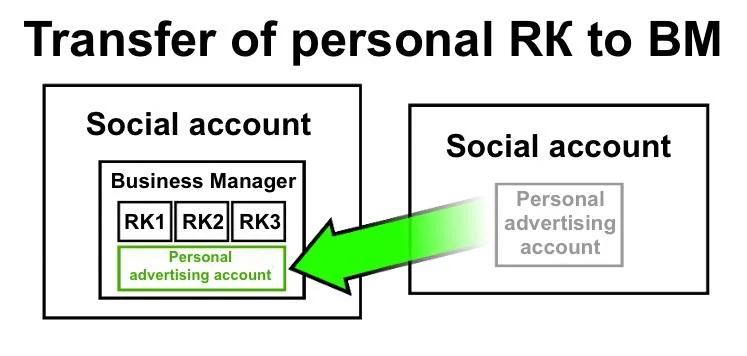
3️⃣ From the King Account, we can manage multiple ad accounts at once.
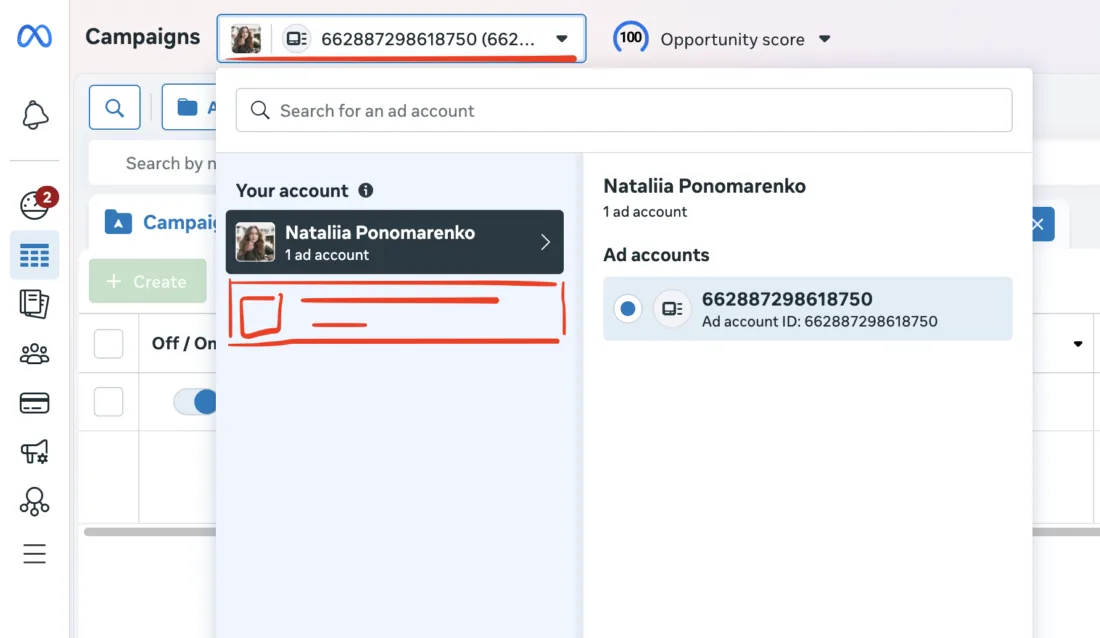
After the transfer, your ad accounts will appear in Ads Manager
3.2 Linking Accounts Correctly
To prevent mass bans, it’s important to connect accounts in a strategic way.
❌ What NOT to do:
- Don’t run multiple ad accounts from the same cheap proxy, or without using proxies (except for mobile internet).
- Do not log in to all accounts one by one through the same browser with detection protection (except when it comes to logging into only one King account and opening other advertising accounts through it).
✅ What to do:
- Use mobile proxies, where we will periodically refresh the IP.
- Use anti-detect browsers to create a separate browser environment for each profile.
4. Business Managers: How to Set Them Up & Use Them
A Business Manager (BM) is where you control multiple ad accounts, pages, and team members. Setting it up correctly is crucial for running a smooth operation.
4.1 How to Create a BM
- Go to business.facebook.com
- Click "Create Business"
- Add your business details
- Connect a verified email & phone number
4.2 Business Manager Trust Levels
Not all BMs are created equal! There are low-trust and high-trust BMs.
✅ Fresh BMs → Can create a few ad accounts, but risk of restriction is high. ✅ Aged BMs → Have a history of running ads and are more trusted. ✅ Agency BMs → Provided by agencies with unlimited ad spend limits.
Newly created BMs have the risk of blocking, so sometimes it is worth considering the option of buying a trust BM with existing advertising accounts
5. Transferring a Personal Ad Account to a Business Manager (BM)
Why:
This is a simple and commonly used method for transferring account rights in traffic arbitrage. It’s quick and doesn’t require much effort.
5.1 How to Transfer Ad Account Access
-
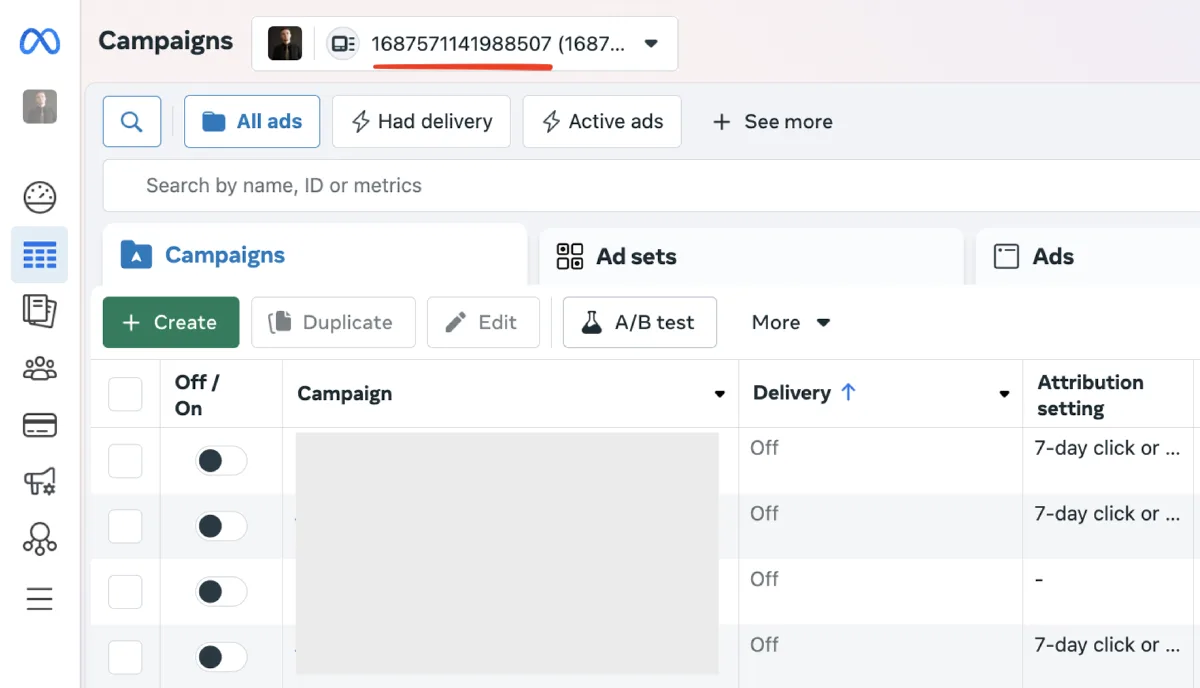
Copy the ad account ID from the Ads Manager of the account you want to transfer.
-
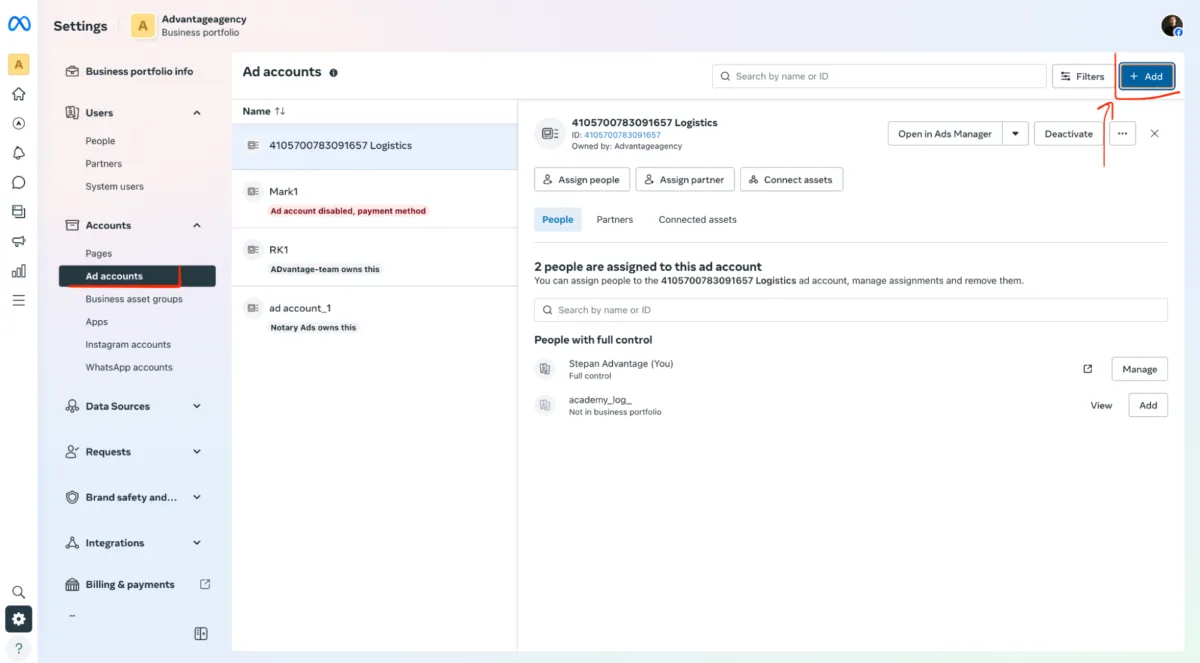
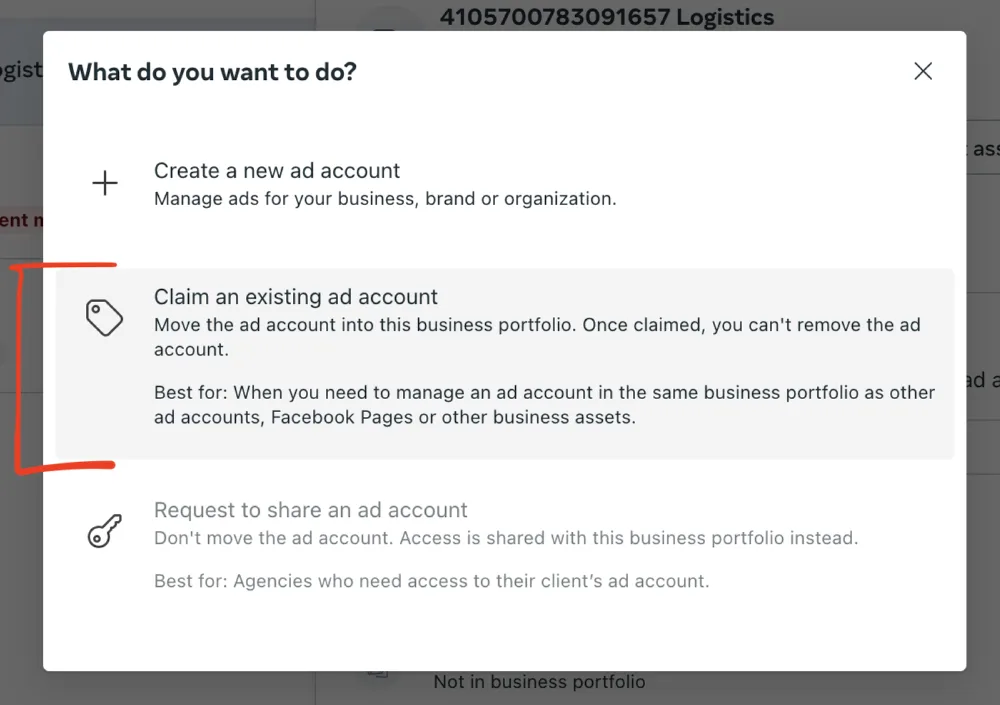
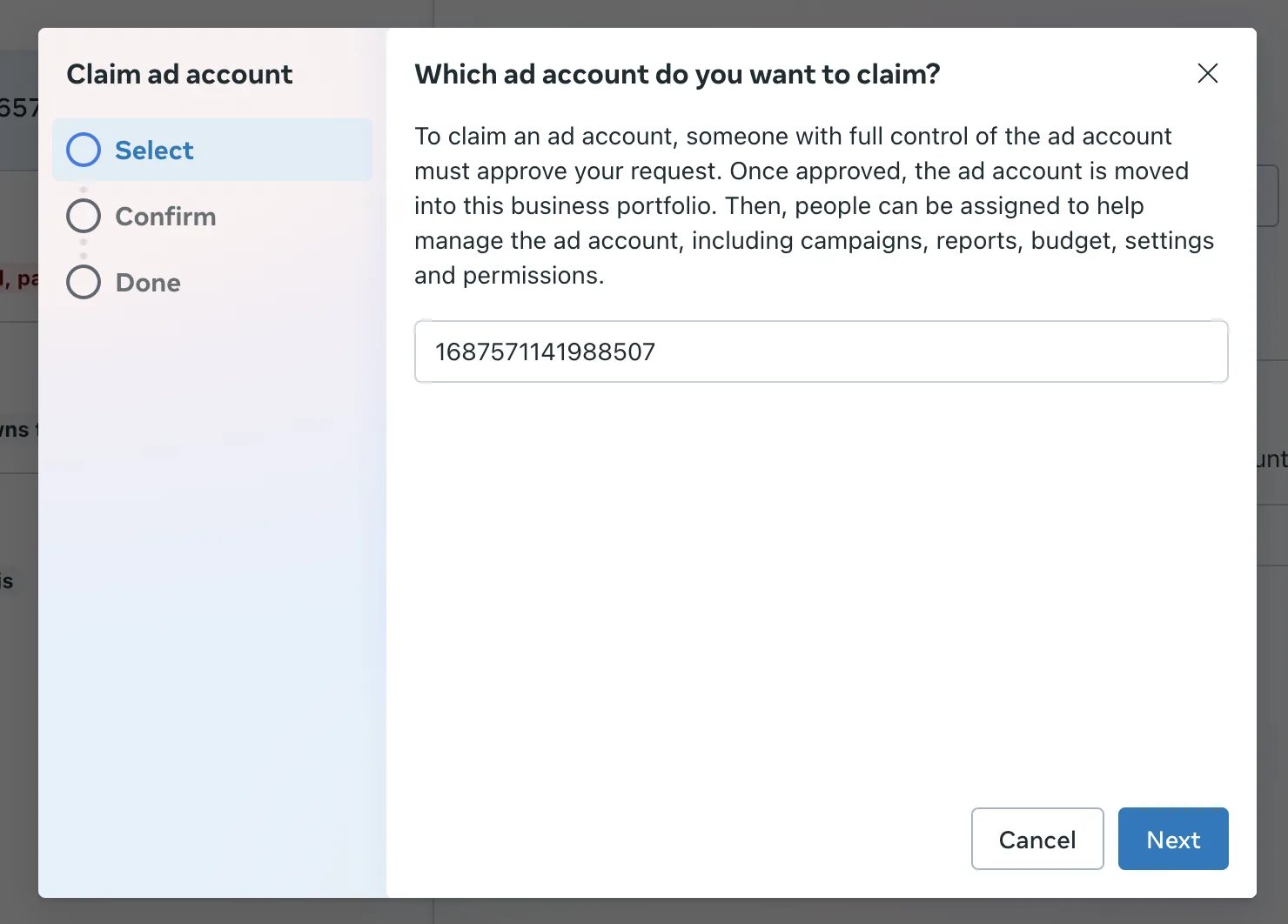
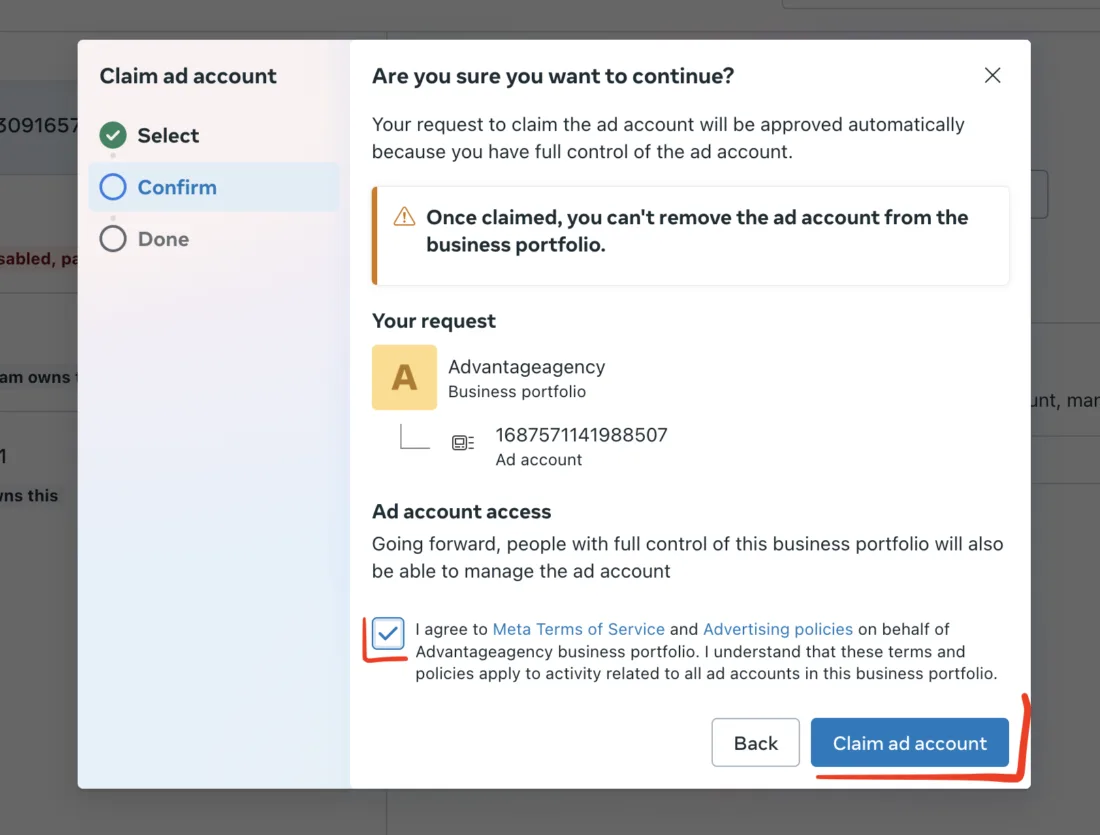
Go to the BM where you want to transfer the account. In the left menu, click "Ad Accounts", then click "Add" and choose "Request access to advertising account".
-
If there’s no Fan Page (FP) in the BM, you will be prompted to create one (this is mandatory). If there’s already an FP, proceed to the next step.
-
Now, return to the Ads Manager of the original account (the one you're transferring from), click on the gear icon on the left.
-
Click "Reply to Request" and select "Provide the company with...".
-
That’s it! The ad account has now been successfully transferred to the Business Manager.
6. Transferring Facebook Pages Between Accounts
Why: Transferring a Facebook Page (FP) to the management of another account is an essential step when Facebook starts banning pages indiscriminately. Sometimes, Facebook may temporarily block or restrict pages for no apparent reason, so it’s a smart move to transfer the page to another account before it gets banned. Additionally, aged pages often have more trust with Facebook, and transferring them can help avoid problems with page bans.
How to do it:
-
Before transferring rights to the FP, you must first friend the accounts with each other, similar to how you would transfer personal account rights. This process is identical to transferring personal information between profiles (see above for instructions).
-
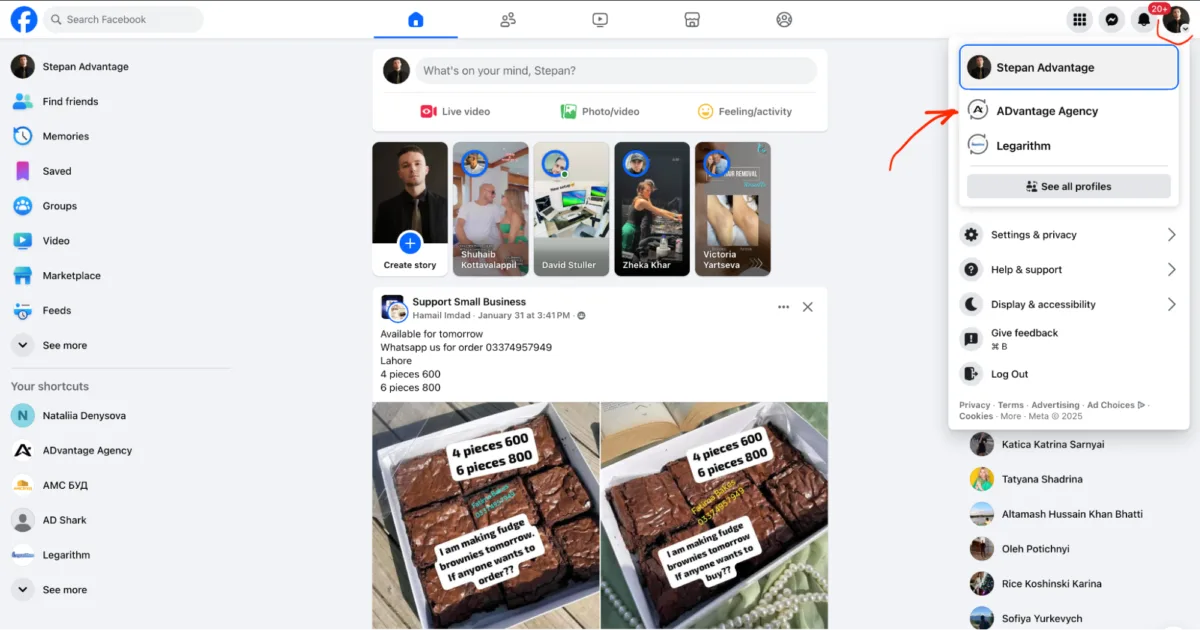
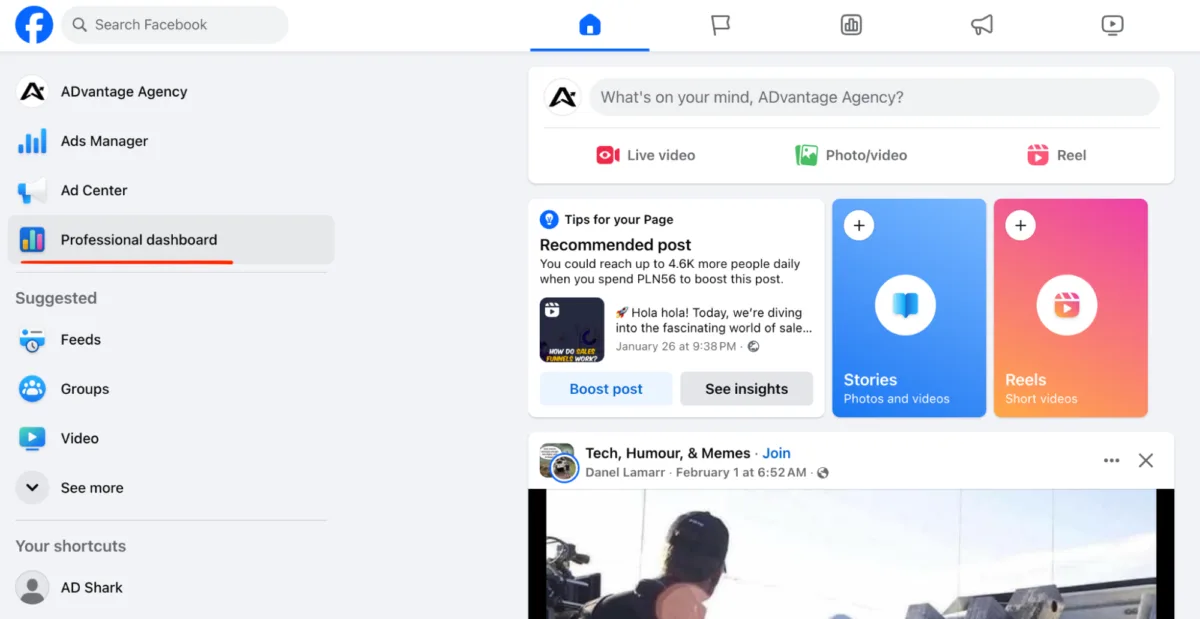
Switch to the FP account (if you haven't done this already). Click on the profile icon in the top right corner, and then click the profile switching icon.
-
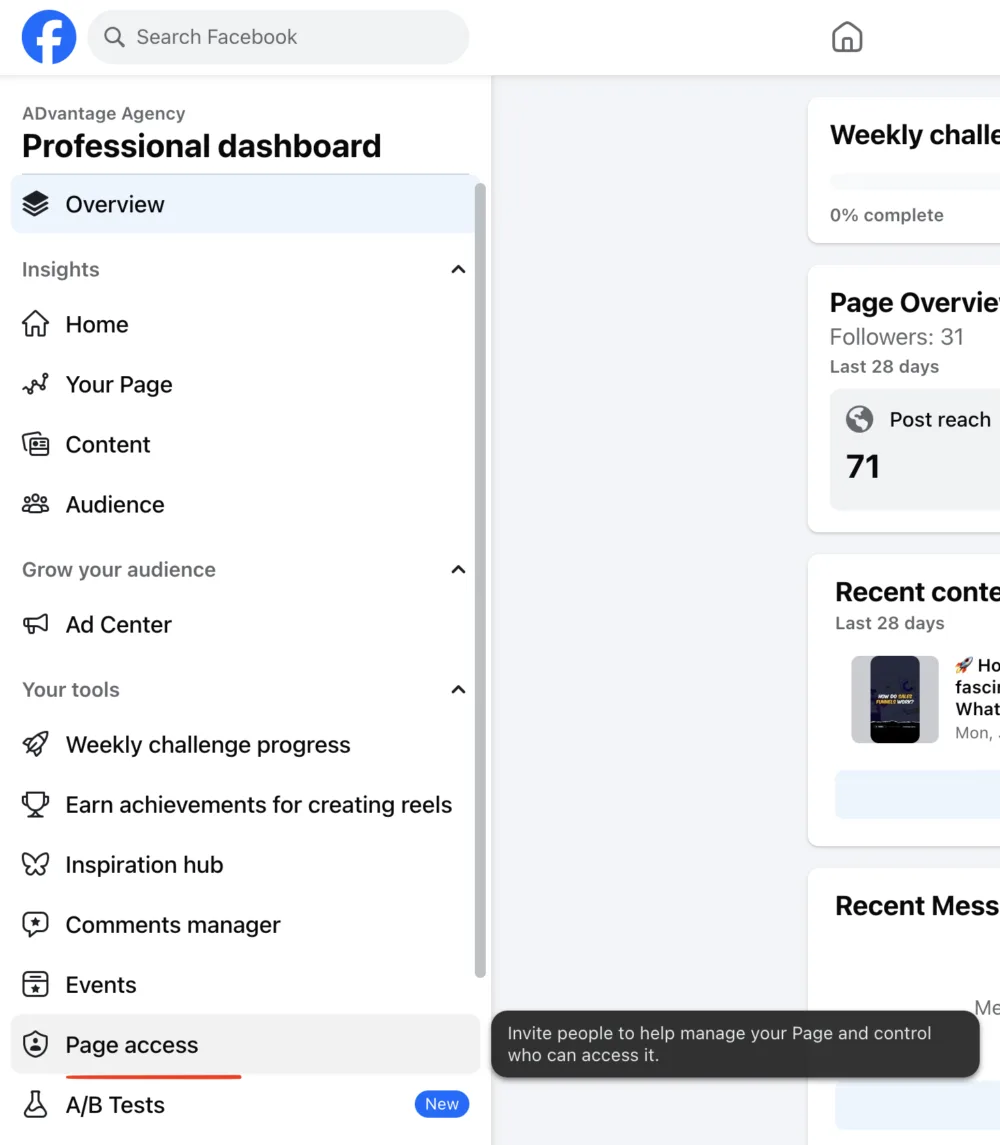
You’ll be taken to the main page of the FP. Once there, click "Manage".
-
In the window that opens, on the left side of the menu, select the "Page Access" section.
-
Next, click "Add" and then click "Next".
-
In the next window, you will be asked to insert the link to the profile to which you're transferring rights. (You can get this link from the profile’s page when transferring personal information). Select the desired account to transfer access to.
-
Once done, confirm the action and the Facebook page will be transferred successfully to the new account's management.